---
title: "Change bundle position"
source_url: "https://bundler.app/articles/change-bundle-position"
---
## Move the bundle widget in 2.0 themes (the easiest tutorial)
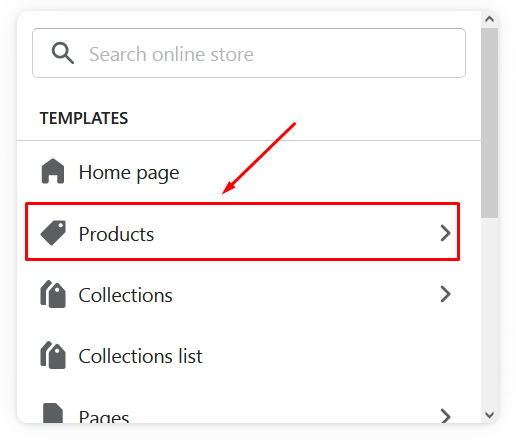
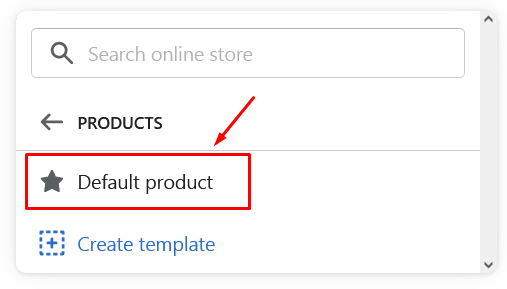
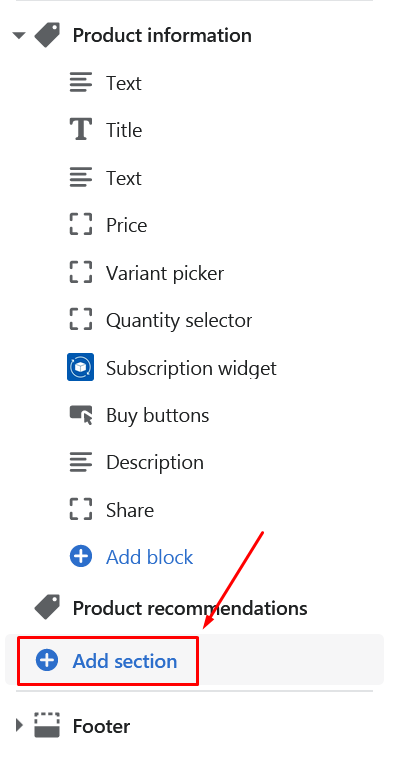
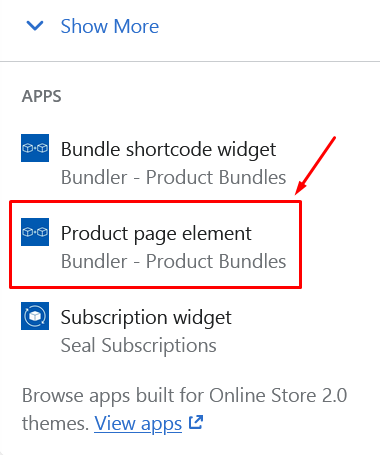
If you are using the theme 2.0, then you can move bundle widget on your product pages in Shopify Admin -> Online store -> Customize -> select the product template at the top -> click Add section -> select the Bundler's Product page element widget.
That's it!
Here are the screenshots on how to do this:
Select product templates:
Select the default or custom product template:
Click the *Add section*:
Scroll down and click on the *Product page element* from *Bundler - Product Bundles*:
## **Move the bundle widget in other themes**
**Step 1: Open you Shopify theme files (Online store -> Actions -> Edit code)**
**Step 2: Open your product template liquid file**
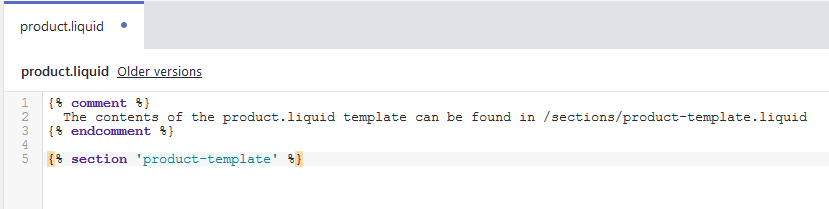
It is usually named *product-template.liquid* and is located in *Sections*folder. If you are not sure which product template your shop uses, then open the *product.liquid* file in *Templates*folder. There is usually a line telling you where you can find your product section, just like in the screenshot.
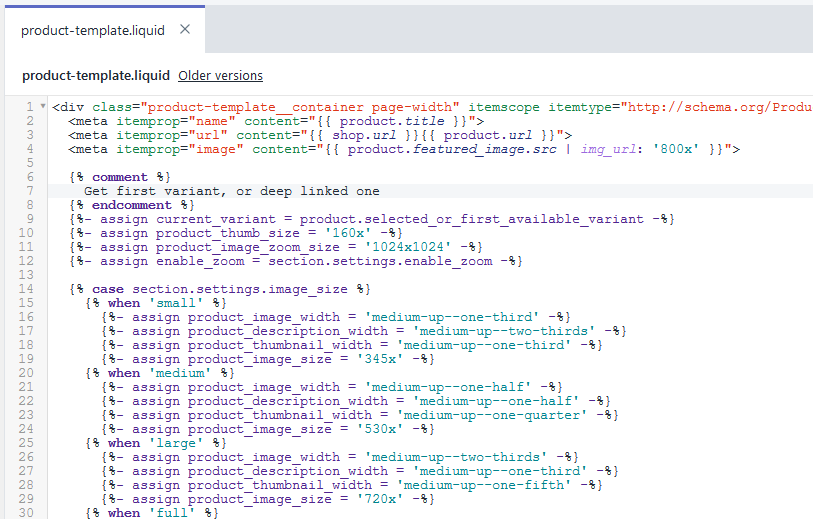
The product template which you want to open, usually looks similar to this one:
**Step 3: Find the part where you want your product bundle to display**
This can be almost anywhere you want it to be. A common place is at the bottom of the product template, after the closing \ tag which closes the HTML element containing product image, add to cart button, social sharing buttons, etc.
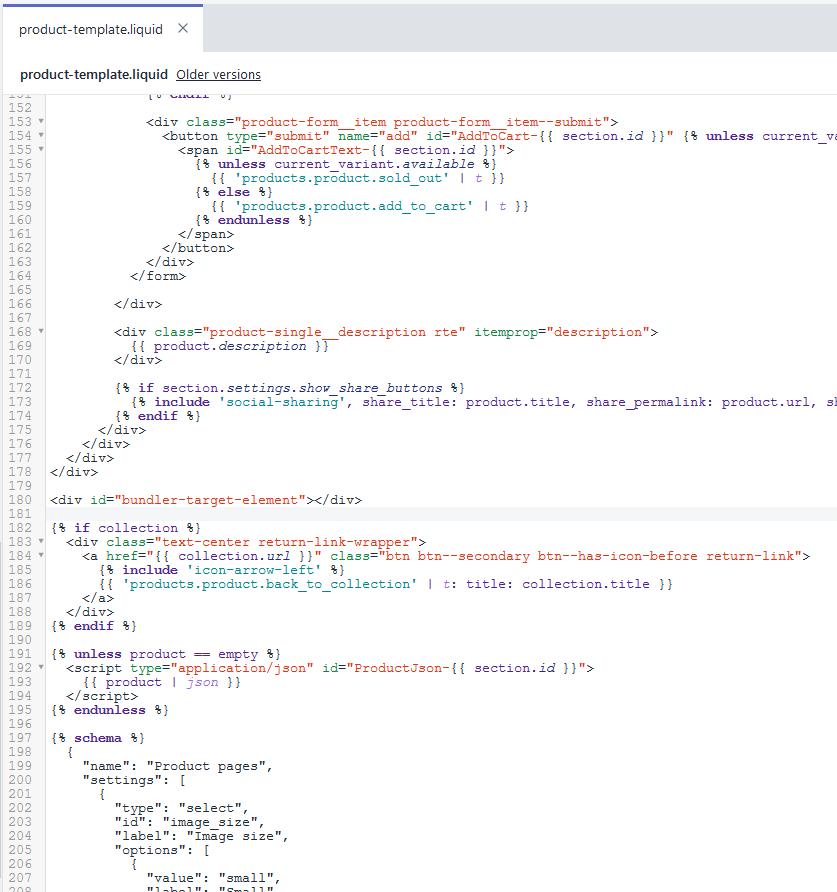
Add the following code into the element where you want your bundle to be.
**\\
**
Here is a screenshot how it looked in our template after we added the code. You can see the \\
in the middle of the screenshot.
**Step 4: Check if the bundle is now displayed on your product page.**
And you are done :) If you need any help, you can always contact us at support@bundler.app.